02.11.2026
Serato DJ for iOS is here: play on iPhone and iPad with your Hercules DJ controller
Serato DJ for iOS is now available, and it works with several Hercules DJ controllers. Whether you’re a beginner learning the basics or a mobile DJ who wants a lighter setup, you can now run one of the world’s most popular DJ software platforms straight from your iPhone or iPad.
What is Serato DJ for iOS?
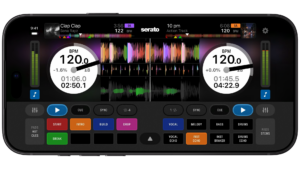
Serato DJ for iOS brings the full power of Serato to every moment, wherever you are. Download it for free on the App Store and start mixing in seconds with a plug-and-play DJ setup.
Key features of Serato DJ on iPhone and iPad
- Music streaming: Stream millions of songs from Apple Music, Spotify and more
- Plug and play hardware support
- Creative tools: Mix with Stems, FX, cue points and pad modes
- Serato iOS transfer: Bring your favorite crates across from your computer to your mobile device
Hercules DJ Controllers compatible with Serato DJ for iOS
If you already own a Hercules controller, you may be able to use it with Serato DJ on your iPhone or iPad. The following models are compatible:
- Hercules DJControl Inpulse 200
- Hercules DJControl Inpulse 200 MK2
- Hercules DJControl Inpulse 200 MK3
- Hercules DJControl Inpulse 300
- Hercules DJControl Inpulse 300 MK2
- Hercules DJControl Inpulse 500
- Hercules DJControl Inpulse T7
- Hercules DJControl Starlight
- Hercules DJControl T10
This wide range covers everything from compact beginner controllers like the DJControl Starlight and DJControl Inpulse 200 series to more advanced options like the DJControl Inpulse 500 and the motorized DJControl Inpulse T10.
USB-C or Lightning connector: how to connect and power your device
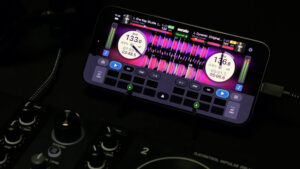
Connecting your DJ controller to your iPhone or iPad depends on the type of port your device has. Keeping your device powered during a set is just as important.
Important: USB-A controllers need an adapter. Most DJ controllers, including many Hercules DJControl models, connect with a USB-A cable. iPhones and iPads don’t have a USB-A port, so you will need an adapter to connect your controller to your device. Choose the adapter that matches your device’s port, as explained below.
USB-C devices
Compatible devices: iPhone 15 and later, iPad Pro (2018+), iPad Mini (2021+), iPad Air (2020+), iPad (2022+).
You can connect to DJ hardware directly via USB-C. If your controller uses a USB-A connector, simply add a USB-C to USB-A adapter. To keep your iPhone or iPad charged while you play, we recommend an Apple USB-C Digital AV Multiport Adapter. It provides USB-C passthrough charging while your device is connected to your hardware.
Lightning connector devices
Compatible devices: iPhone 14 and below, and iPads not listed above.
Lightning devices do not natively support USB-A or USB-C devices, so an adapter is required. We recommend an Apple Lightning to USB 3 Camera Adapter. It allows Lightning passthrough charging while your device is connected to your gear.
How to use Serato iOS transfer
Moving your music library to your mobile device is simple with the new iOS Transfer feature:
- Launch the beta version of Serato DJ Pro on your computer.
- In the Library panel, look for the new iOS Transfer section.
- Drag and drop entire crates or individual tracks from your library onto your device’s icon.
To use the iOS Transfer feature in the app:
- Navigate to the Crates window and tap “Transfer & files”
- Then tap “Transfer”
Your device is now ready to receive crates and tracks from your Serato DJ Pro library.
There are two ways to transfer music, so you can pick the method that suits your workflow.
Start DJing on iPhone and iPad today
With Serato DJ for iOS and a compatible Hercules controller, you can mix anywhere, from the living room to the party. Download Serato DJ for iOS for free from the App Store, connect your Hercules controller and start playing.